 Using
Using Using
Using Real Time Tuning (RTT™)
At this point, we assume you already have the VCM Enhancement with RTT™ capabilities already in your vehicle.
Step 1. Selecting the RTT™ Mode
Due to the limited amount of space in the VCM's RAM, we can only load a few tables at once.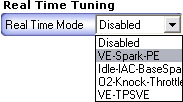
Step 2. Connecting with VCM Scanner
Connect to the vehicle using VCM Scanner.
Step 3. Understanding the Real Time Tuning Toolbar
The toolbar is designed to give you similar functionality to the table display in VCM Editor.
Toolbar

|
These numbers represent each table that is available for real
time tuning in the current mode. By default, all these tables will use what is located on the flash chip until you enable them by using the play buttons. Each time you key off or cycle the ignition, any changes made to the table in RAM will be lost and refreshed with table data from the flash chip. |

|
Command VCM to use the data in RAM for the current table. |

|
Command the VCM to use the data on flash for the current
table. This will not remove your changes from RAM. They will remain until you cycle the ignition of the vehicle. If you hit the play icon again, you will simply pick up where you left off. Your changes will not have been lost. |

|
Command VCM to use the data in RAM for all tables. |

|
Command the VCM to use the data on flash for all current tables. |
Step 4. Understanding the Real Time Tuning Auto Tune
Auto tune is currently disabled and will be available in a future release of VCM Suite.
Step 5. Activating a table in RAM
When you are ready to start tuning a table in real time, click the green play button.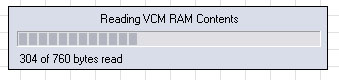
Step 6. Using the Right Click Menu
The same right click menu exists for this table editor as does in VCM Editors table editor.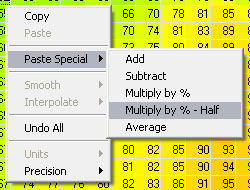
Step 7. Finalizing the Changes
After you have built a table that you feel is worthy of permanent stay, simply right click the table and click copy.